

Purpose
This guide explains how to generate the required Gravwell credentials for configuring the integration in AirMDR:| Required Field | Description |
|---|---|
Instance_url | Base URL of the Gravwell web instance. |
Token | Gravwell API token used to authenticate API requests. |
Gravwell API tokens allow external tools to access selected Gravwell APIs without requiring a full login flow. Tokens can be restricted by permission and expiration.
Supported Versions
| Component | Supported/Recommended |
|---|---|
| Gravwell | Gravwell versions that support API Tokens and REST APIs |
| Authentication Method | Gravwell API Token |
| Protocol | HTTPS recommended |
| Integration Type | SIEM / Data Lake / Log Search integration |
Gravwell’s Direct Query API is designed for REST-based access to Gravwell search and requires a valid Gravwell account or token with search access.
Authentication
Gravwell uses API tokens for external integrations.Authentication Fields
| Field | Description |
|---|---|
Instance_url | Reachable Gravwell base URL or IP |
Token | Gravwell API Token |
https://gravwell.company.com or http://199.244.253.132
Users only need to provide the
Instance_url and Token in the AirMDR integration UI.Role-Based Access Recommendations
| Permission | Purpose |
|---|---|
| Search Access | Required for executing queries |
| Tag Access | Required for reading Gravwell tags |
| Alert Read Access | Required if alerts are queried |
| Admin Access | Not recommended |
Best Practice: Create a dedicated low-privilege token specifically for AirMDR integration usage.
Pre-requisites
Users must have Administrator access to the Gravwell UI with sufficient privileges to create or manage users and verify firewall settings.Permission to create API tokens in Gravwell.
Gravwell admins can restrict token creation for non-admin users using CBAC controls.
Setup Steps
Generate the Instance URL
- Log in to the Gravwell web UI.
- Identify the Gravwell server IP address or hostname that is reachable from the AirMDR platform or configured remote agent.
- Use the Gravwell base URL in one of the following formats: Using IP Address:
http://199.244.253.132
or, if SSL/TLS is enabled:https://199.244.253.132
Using Hostname:https://gravwell.company.com - Remove any additional paths after the hostname or IP address.
Use this:http://199.244.253.132orhttps://gravwell.company.com
Avoid this:
http://199.244.253.132/api/search/direct
https://gravwell.company.com/search/history - Save this value as
Instance_url.TheInstance_urlmust contain only the Gravwell base URL or reachable IP address. API paths such as/api/parseand/api/search/directare automatically appended by the integration during API requests.Ensure the Gravwell IP address or hostname is reachable from the AirMDR platform or the configured remote agent.
Generate the API Token in Gravwell UI
- Log in to the Gravwell web UI.
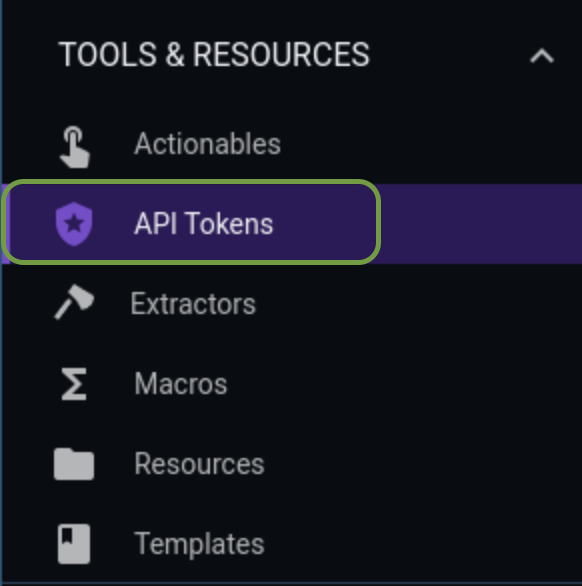
- From the left navigation menu, go to: Tools & Resources → API Tokens.
The Gravwell API Token interface is located under Tools & Resources.
- Click Create Token or New Token.
- Enter a clear token name. Example:
AirMDR Integration Token - Add a description.
Example:Token used by AirMDR to query Gravwell alerts and telemetry. - Select the required permissions. Recommended minimum permissions:
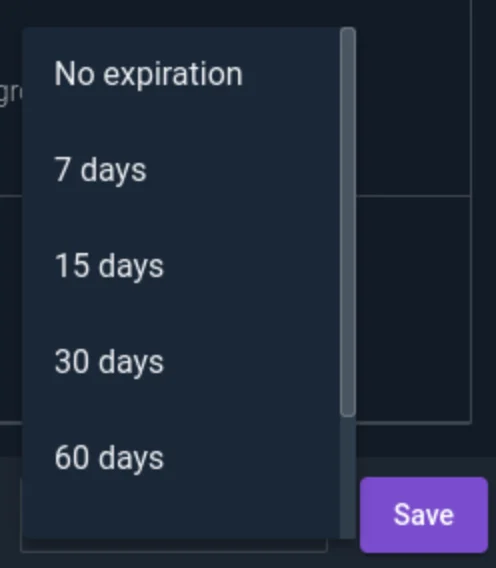
Permission Area Purpose Search Allows AirMDR to run Gravwell searches. Search and Data Allows access to search-related APIs. Alert Read Allows AirMDR to retrieve alert information, if required. Tag Access Allows access to required Gravwell tags. Gravwell supports selecting permissions as grouped permissions or fine-grained controls. - Set an expiration date, if required.
- Click Generate.
- Copy the generated token immediately.

- Store the token securely.
Generate the API Token in Gravwell UI
- Log in to the Gravwell web UI.
- From the left navigation menu, go to: Tools & Resources → API Tokens.
The Gravwell API Token interface is located under Tools & Resources.
- Click Create Token or New Token.
- Enter a clear token name. Example:
AirMDR Integration Token - Add a description.
Example:Token used by AirMDR to query Gravwell alerts and telemetry. - Select the required permissions. Recommended minimum permissions:
Permission Area Purpose Search Allows AirMDR to run Gravwell searches. Search and Data Allows access to search-related APIs. Alert Read Allows AirMDR to retrieve alert information, if required. Tag Access Allows access to required Gravwell tags. Gravwell supports selecting permissions as grouped permissions or fine-grained controls. - Set an expiration date, if required.
- Click Generate.
- Copy the generated token immediately.
- Store the token securely.
Integration Credential Requirements
Use the following values in the AirMDR integration configuration screen:| AirMDR Field | Value |
|---|---|
| Instance URL | https://<gravwell-hostname> |
| Token | <generated-gravwell-api-token> |
| Verify SSL Certificate | Enabled, unless using a trusted internal exception |
| Remote Agent | Select if Gravwell is accessible only through an internal network |
Gravwell Credential Reference Table
| AirMDR Field | What to Enter | Where to Get It | Example |
|---|---|---|---|
Instance_url | Gravwell API base URL using the reachable IP/host | Use the Gravwell server IP or hostname that AirMDR/remote agent can access | http://199.244.253.132 or https://199.244.253.132 |
Token | Gravwell API token | Gravwell UI → Tools & Resources → API Tokens | <generated-gravwell-token> |
Validate Connectivity
Use the following command to verify connectivity and token authentication:Sample Request & Response – /api/parse
Sample Request & Response – /api/parse
Request:Sample successful response:Sample Failure Response:
Sample Request & Response – /api/search/direct
Sample Request & Response – /api/search/direct
Request:Sample Successful Response:Sample Failure Response:
The
/api/parse endpoint validates query syntax, while /api/search/direct executes the actual Gravwell search query and returns results.The token used must have
Search permission enabled; otherwise the API returns authorization failures.Configure Gravwell in AirMDR Integrations Dashboard
- Navigate to AirMDR, provide the credentials and click Login
- Navigate to the AirMDR Integrations Dashboard in the left navigation pane and select Integrations.
- Use the search option, enter the keyword “Gravwell”, select the Connections tab, and click + Create button.
- Enter an unique name to the Instance (e.g.,
your org name-Gravwell) to easily identify the user connection by AirMDR. - Enter the application credentials like Instance URL and Token in the Authentication Details field params, and click Save.
Skills provided by this Integration
| Skill ID | Purpose |
|---|---|
| Get Gravwell Ingesters state | Get the state of ingesters in gravwell instance. |
| Gravwell Execute Query for Detections | This skill executes queries on Gravwell instances for detection purposes. It supports custom search strings and time duration filters to retrieve security logs and events for analysis. |
| Execute Gravwell Query | Execute a query in Gravwell. |
Additional Information
🧰 Error Handling
🧰 Error Handling
| Error | Possible Cause | Resolution |
|---|---|---|
401 Unauthorized | Invalid, expired, or copied incorrectly token | Generate a new token and update AirMDR. |
403 Forbidden | Token does not have required permissions | Add required search/read permissions. |
404 Not Found | Incorrect Instance URL or API path | Verify the base URL and endpoint. |
TLS certificate error | Self-signed or untrusted certificate | Use a trusted certificate or configure certificate validation as per internal policy. |
Connection timeout | Network/firewall issue | Check connectivity from AirMDR or remote agent. |
Query parse failed | Invalid Gravwell query syntax | Validate query in Gravwell UI first. |
No data returned | Incorrect tag, time range, or permission issue | Confirm tag access and query scope. |
🔄 Monitoring & Logs
🔄 Monitoring & Logs
Where to Check
| Location | Purpose |
|---|---|
| AirMDR Integration Status | Validate connection status and integration health. |
| AirMDR Playbook Execution Logs | Review API call failures or query errors. |
| Gravwell API Token Page | Check token status and expiration. |
| Gravwell Webserver Logs | Troubleshoot authentication or API errors. |
INFO Gravwell integration validation completed successfully.INFO Tags retrieved from Gravwell instance.Sample Failure LogERROR Gravwell API request failed.ERROR Status Code: 401 Unauthorized.ERROR Reason: Invalid or expired token.\Recommended Log Levels| Log Level | Usage |
|---|---|
| INFO | Successful connection, validation, and query execution. |
| WARN | Slow response, partial data, or expiring token. |
| ERROR | Authentication failure, timeout, SSL failure, or invalid endpoint. |
| DEBUG | Use temporarily during troubleshooting only. |
🛑 Security & Access Best Practices
🛑 Security & Access Best Practices
Do
- Use a dedicated Gravwell token for AirMDR.
- Grant only required permissions.
- Set token expiration where possible.
- Store the token in a secure vault.
- Use HTTPS with valid TLS certificates.
- Rotate tokens periodically.
- Disable or delete unused tokens.
- Use a remote agent when Gravwell is not publicly reachable.
Avoid
- Do not use personal admin tokens for integrations.
- Do not share tokens over email or chat.
- Do not disable SSL verification unless approved internally.
- Do not grant token write permissions unless absolutely required.
- Do not reuse the same token across multiple tools.
👉 Support & Maintenance
👉 Support & Maintenance
- 📧 Contact AirMDR Support through your designated support channel.
- 🔁 Rotate credentials regularly. Recommended cadence: Every 90 days or as per internal security policy
- 🔄 Reconnect in AirMDR when secrets are changed.
| Activity | Recommended Frequency |
|---|---|
| Review token permissions | Quarterly |
| Rotate API token | As per company security policy |
| Check token expiration | Monthly |
| Validate integration health | After Gravwell upgrades |
| Review AirMDR execution logs | During incident or integration failures |
🛑 Data Flow & Security
🛑 Data Flow & Security
Data Exchanged
| Data Type | Direction | Description |
|---|---|---|
| API Token | AirMDR → Gravwell | Used for authentication. |
| Search Query | AirMDR → Gravwell | Used to retrieve required telemetry. |
| Alerts | Gravwell → AirMDR | Returned if alert read access is configured. |
| Tags / Telemetry Metadata | Gravwell → AirMDR | Used to identify available data sources. |
| Search Results | Gravwell → AirMDR | Used for enrichment and investigation. |
Ports and Endpoints\
| Item | Value |
|---|---|
| Protocol | HTTPS |
| Default Port | 443 |
| Instance URL Format | https://<gravwell-hostname> |
| Example API Endpoint | /api/tags |
| Search Parse Endpoint | /api/parse |
| Direct Search Endpoint | /api/search/direct |